
How to Import Photos
The import process is the same in both Mimeo Photos and Motif.
- Open your project.
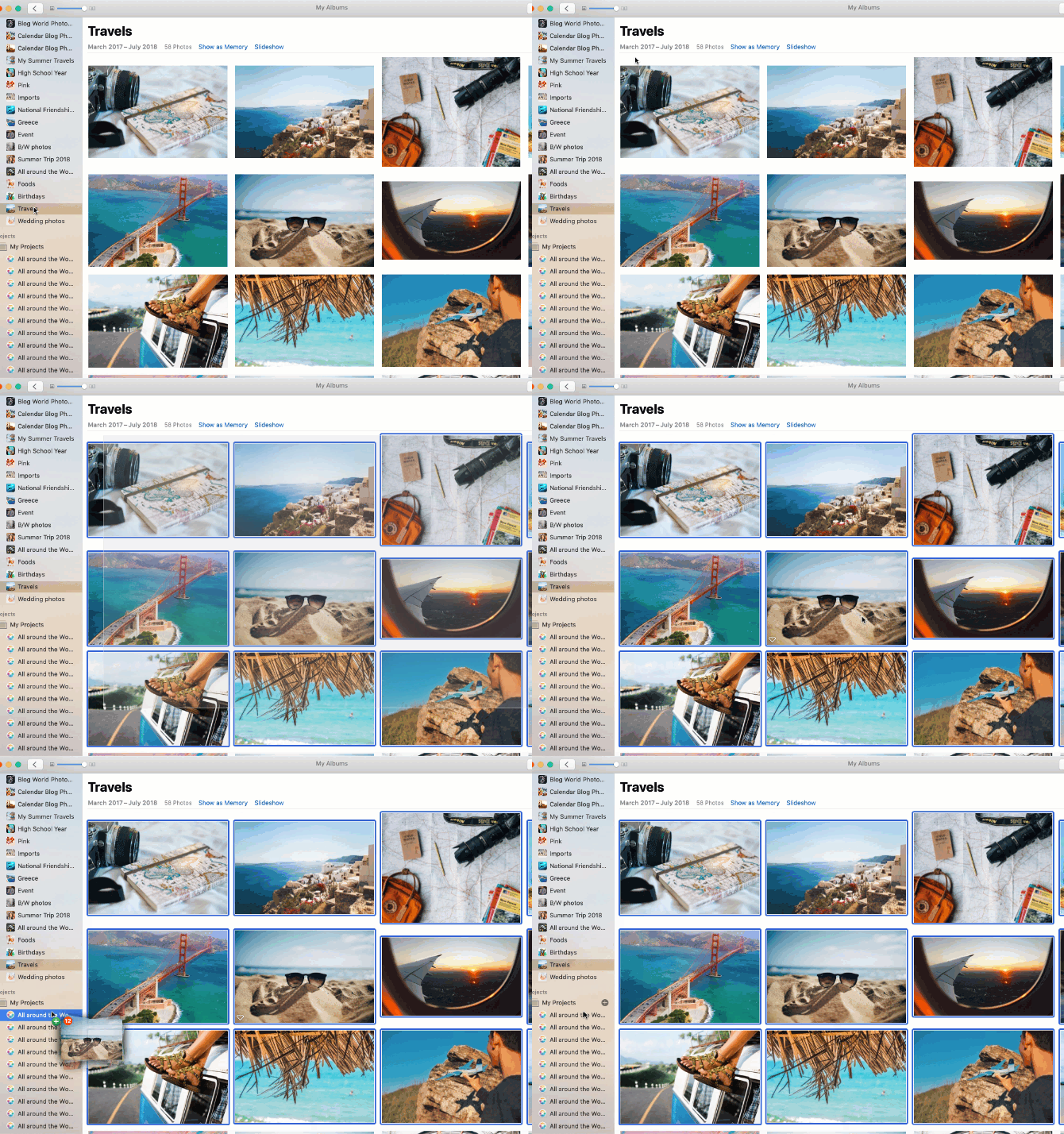
- In the left-hand panel, browse your library or open a specific album.
- Drag photos individually, or drag an entire album, directly onto your project canvas.
That's it! Your photos will populate the project and be ready to use.
Tip: If you want to reuse photos from an existing project, open that project under My Projects and click the plus sign to create a new project of the same product type. Your existing photos will carry over.
Photos Not Appearing?
If your photos are not showing up after import, your Apple Photos Library settings may need a quick adjustment. Visit our guide on setting up your Apple Photos Library for Mimeo Photos and Motif for steps to resolve this.
Need Help?
Reach our support team by email at help@mimeophotos.com or through live chat on our website.